
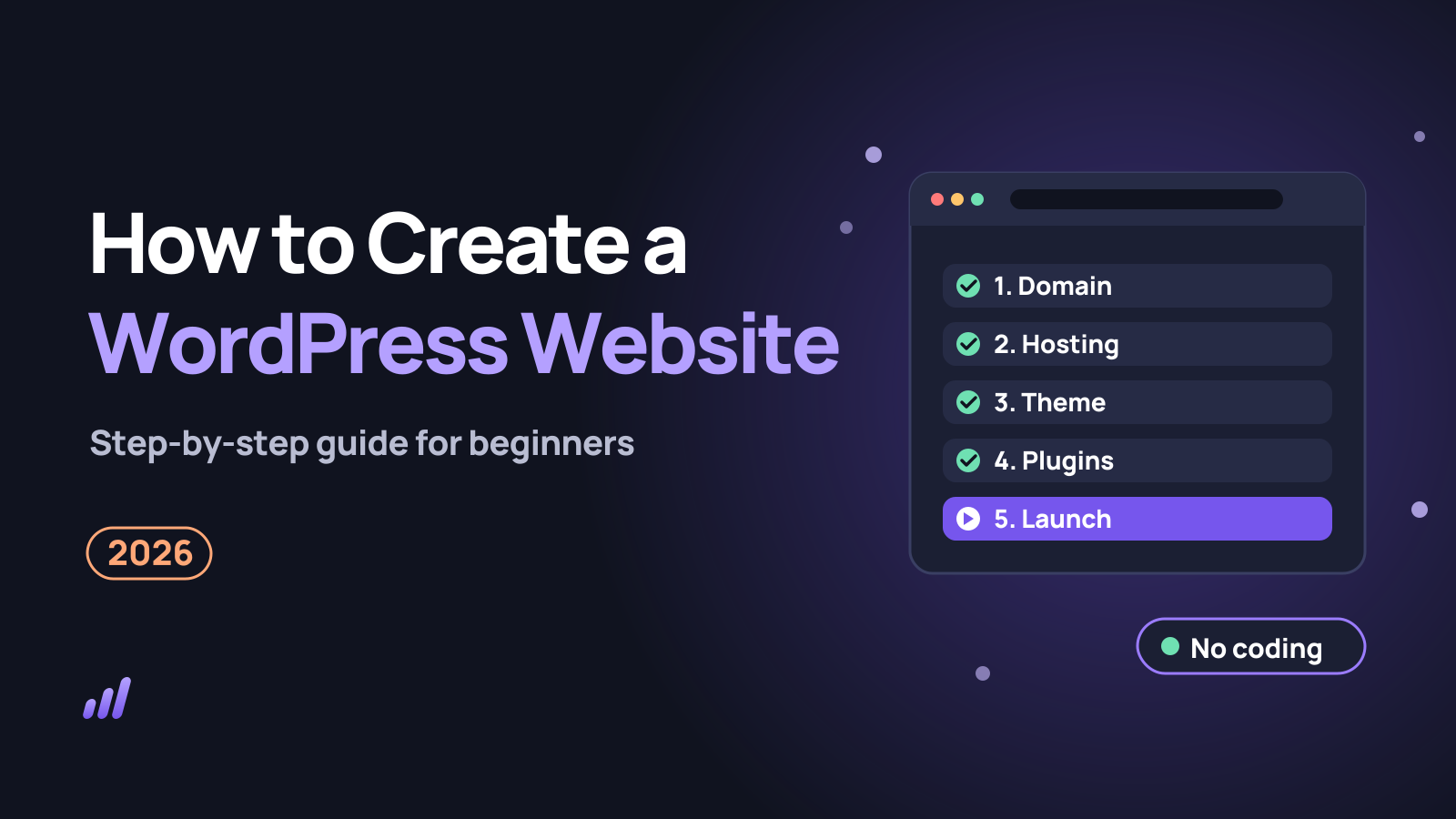
Quick answer: to create a WordPress website, pick a domain name, buy hosting with one-click WordPress install, install WordPress, choose a theme, add a few essential plugins, build your key pages and launch. Most beginners finish in 2 to 4 hours, and it costs from about $3 (₹149) a month.
Creating a WordPress website at a glance (October 2026)
- Time needed
- 2 to 4 hours for a basic 5-page site
- Coding needed
- None
- Starting cost
- From about $3 (₹149) a month on a 48-month hosting plan
- Recommended host
- Hostinger (one-click WordPress, free domain and SSL)
- Coupon code
- GETTOMARKETING10 (extra discount at checkout)
Disclosure: some links in this article are affiliate links. If you buy through them, we may earn a commission at no extra cost to you.
How to create a WordPress website: the 9 steps
- Decide what your site is for (blog, business, portfolio or shop).
- Pick a domain name that is short and easy to spell.
- Buy web hosting that includes one-click WordPress install.
- Install WordPress from your hosting dashboard.
- Choose a theme to control your site’s design.
- Install a few essential plugins for SEO, forms, backups and speed.
- Create your key pages: Home, About, Services, Contact and Privacy Policy.
- Set up your menu, homepage and settings.
- Launch the site and submit it to Google Search Console.
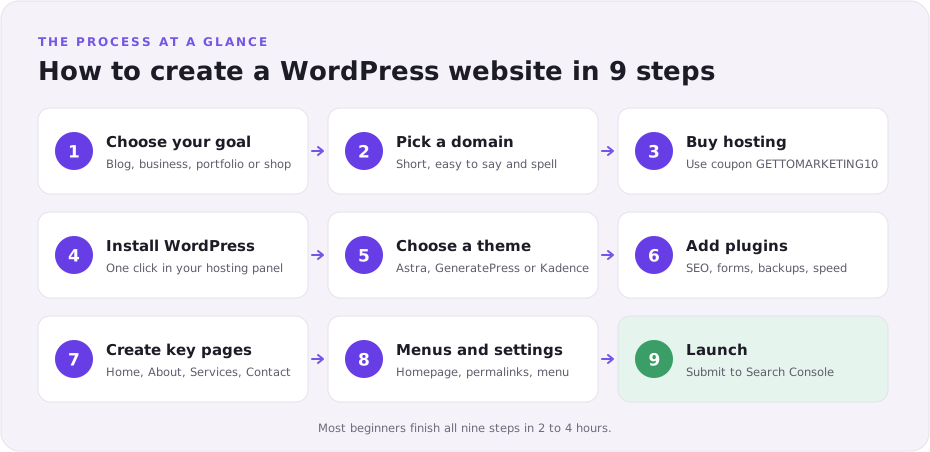
Table of contents
- What is WordPress and why use it?
- Is WordPress free?
- WordPress.com vs WordPress.org
- What you need before you start
- How much does a WordPress website cost?
- How to create a WordPress website step by step
- After launch: your first 30 days
- Example scenario: a bakery website in one weekend
- Common mistakes to avoid
- Can you create a WordPress website for free?
- Using AI to build a WordPress website
- FAQs
You have a business, a blog idea or a portfolio, and you need it online. But the moment you search for help, you hit a wall of jargon: hosting, domains, SSL, themes, plugins.
Most beginners then make one of three mistakes. They pay a developer far too much, they pick the wrong version of WordPress, or they get stuck halfway and never launch.
This guide shows you how to create a WordPress website from scratch, with no coding. You will see exactly what to buy, what it costs, which buttons to click, and what to do in the first 30 days so your site actually gets visitors.
What is WordPress and why use it?
WordPress is free, open-source software for building and managing websites. You write pages and posts in a visual editor, and WordPress turns them into a working site. No HTML or coding is needed.
It is the most popular way to build a website. According to W3Techs data reported by Barn2, WordPress runs about 42.6% of all websites and roughly 60% of sites that use a known content management system.
Why it matters for you:
- You own your site. You can move it to any host at any time.
- It grows with you. Start with a 5-page site and add a blog, shop or booking system later.
- Huge ecosystem. Thousands of free themes and plugins cover almost any feature.
- SEO-friendly. Clean URLs, fast themes and SEO plugins help you rank.
- Easy to get help. Almost any problem you hit has a tutorial already written.
When to use WordPress: blogs, business sites, portfolios, local service sites, membership sites and small to mid-sized shops.
When not to use it: a single-page link-in-bio you will never update, or a huge custom web app that needs a development team. A simple hosted builder may suit the first; custom code suits the second.
Is WordPress free?
Yes, the WordPress software is free. You can download it from WordPress.org and use it for personal or commercial sites at no cost.
What is not free is the place your site lives. To put a self-built WordPress site online, you pay for:
- Web hosting: the server that stores your site (from about $3 or ₹149 a month on long plans).
- A domain name: your address, such as yourbusiness.com (often free for year one with hosting, then about $10 to $20 a year).
- Optional extras: premium themes or plugins, if you need them.
Pro tip: “free WordPress” offers that include free hosting usually put ads on your site, give you a long subdomain (like yoursite.wordpress.com), or limit plugins. They are fine for practice but weak for a business.
WordPress.com vs WordPress.org: which one should you use?
This is the most common beginner mix-up. They share a name but work very differently.
- WordPress.org is the free software you install on your own hosting. People call this “self-hosted WordPress”.
- WordPress.com is a hosted service run by Automattic. It handles hosting for you, but free and lower plans limit what you can do.
| Feature | WordPress.org (self-hosted) | WordPress.com (hosted) |
|---|---|---|
| Software cost | Free | Free plan, paid plans for more features |
| Hosting | You buy it (from ~$3/month) | Included |
| Custom domain | Yes | Paid plans only |
| Install any plugin | Yes | Higher-priced plans only |
| Ads on your site | None unless you add them | Shown on the free plan |
| Control and ownership | Full | Limited by the plan |
| Difficulty | Easy with one-click install | Easiest |
| Best for | Businesses, bloggers who want to grow or earn | Hobby sites, quick personal pages |
Our recommendation: use WordPress.org with good hosting. This whole guide uses that approach, because it gives you full control for only a few dollars a month.
What you need before you start
Gather these before you begin. It saves time and stops you from stalling halfway.
- ✅ A clear goal for the site (sell, inform, collect leads, show work)
- ✅ 2 or 3 domain name ideas
- ✅ A payment method (card, UPI or PayPal)
- ✅ Your logo, or just your business name in a clean font
- ✅ Text for your About, Services and Contact pages (rough notes are fine)
- ✅ 5 to 10 photos (your own, or free stock photos)
- ✅ 2 to 4 hours of focused time
How much does a WordPress website cost?
A basic self-built WordPress website costs about $40 to $150 in year one. Most of that is hosting. Here is a realistic breakdown.
| Item | Free option | Typical cost | Notes |
|---|---|---|---|
| WordPress software | Yes | $0 | Always free |
| Hosting | No | $3–$4/month on a 48-month plan (₹149+/month in India) | Renews higher, around $11/month for entry plans |
| Domain name | Free year 1 with many hosts | $10–$20/year after | .com is usually cheapest to keep |
| SSL certificate | Yes | $0 | Free with most hosts |
| Theme | Yes | $0–$60/year | Free themes are enough for most |
| Plugins | Yes | $0–$100/year | Start with free versions |
| Developer | Not needed | $500–$5,000+ | Only if you hire one |
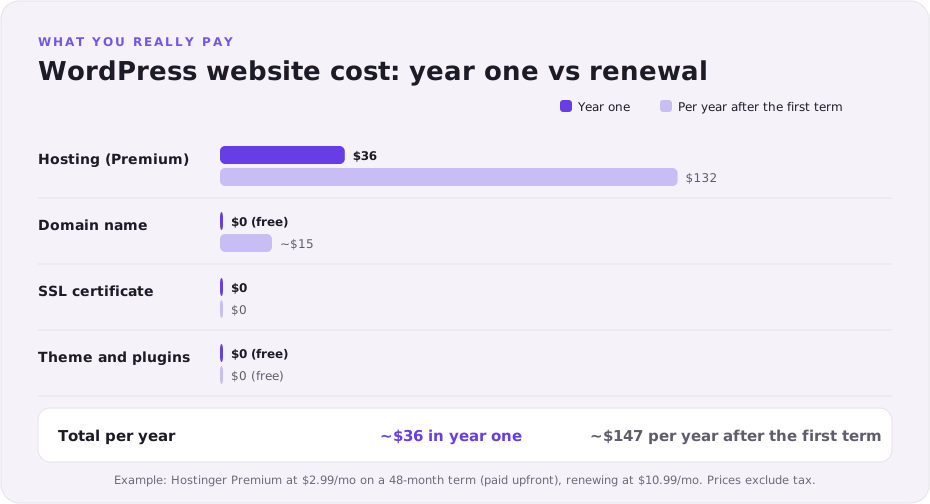
What matters most: the renewal price. Introductory hosting deals are cheap, but plans often renew at two to three times the price. Choose the longest term you are comfortable with to lock in the low rate.
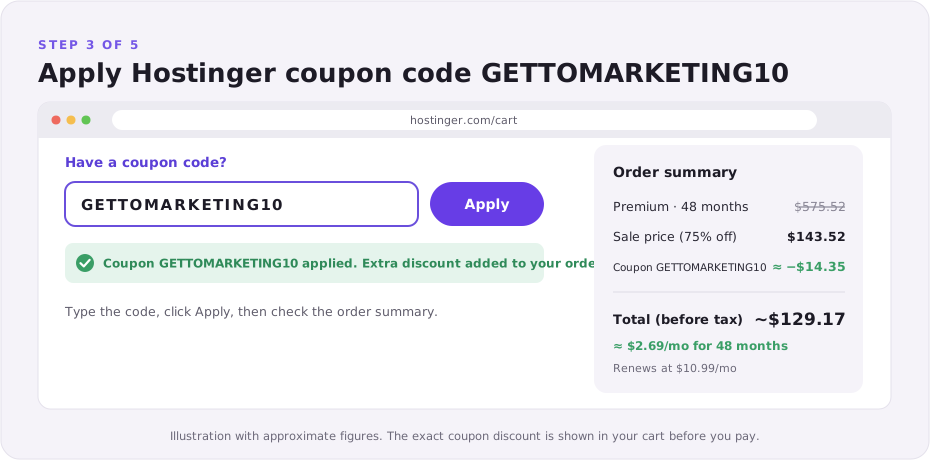
Pro tip: at checkout on Hostinger, enter coupon code GETTOMARKETING10 for an extra discount on top of the sale price. See our Hostinger coupon code guide for current prices.
How to create a WordPress website step by step
Follow these 10 steps in order. Each one builds on the last, so don’t skip ahead.
Step 1: Choose your website goal
Before you buy anything, write one sentence: “This site helps [who] to [do what].” For example: “This site helps local families order custom birthday cakes.”
Your goal decides your theme, your pages and your plugins. A blog needs good reading layouts. A service business needs a clear contact form. A shop needs WooCommerce.
| Site type | Must-have pages | Key plugin |
|---|---|---|
| Blog | Home, About, Blog, Contact | SEO plugin |
| Business or service | Home, Services, About, Contact | Contact form |
| Portfolio | Home, Work, About, Contact | Gallery block (built in) |
| Online shop | Home, Shop, Cart, Checkout, Contact | WooCommerce |
Common mistake: trying to be a blog, shop and portfolio at once on day one. Launch one clear purpose, then grow.
Step 2: Pick a domain name
A domain name is your website’s address, such as gettomarketing.com. Visitors type it to find you, and it becomes part of your brand.
Best practices for choosing one:
- Keep it short: under 15 characters if you can.
- Make it easy to say and spell. Avoid hyphens and numbers.
- Choose .com for global audiences, or .in for an India-only business.
- Check that the matching social media handles are free.
- Avoid trademarked names, even partly.
Example: “Priya’s Bakes” works better as priyasbakes.com than as priyas-bakes-and-cakes-online.com.
Pro tip: most hosts give you a free domain for the first year. Pick it during hosting checkout to save $10 to $15.
Step 3: Buy WordPress hosting
Web hosting is the rented server space where your website’s files live. Without it, nobody can see your site. For a first website, shared hosting is all you need. It is cheap, managed for you and fast enough for thousands of visitors a day.
Look for these features:
- One-click WordPress install
- Free SSL certificate (the padlock in the browser)
- Free domain for the first year
- Automatic backups
- 24/7 live chat support
- A 30-day money-back guarantee
We recommend Hostinger for beginners. It ticks every box above, starts at around $2.99 a month (₹149 in India) on a 48-month plan, and has an easy dashboard called hPanel. Read our full reasons in Best Web Hosting for Beginners.
How to buy it:
- Open Hostinger and choose the Premium plan (enough for most first sites).
- Pick the 48-month term for the lowest monthly price.
- At checkout, click “Have a coupon code?”, enter GETTOMARKETING10 and click Apply.
- Create your account and pay.
- Claim your free domain in hPanel.
When not to use shared hosting: a large online store, or a site expecting very high traffic from day one. Those need cloud or VPS hosting.
Step 4: Install WordPress
On most good hosts, installing WordPress takes about five minutes and no technical skill.
On Hostinger:
- Log in to hPanel and click Add website (or follow the setup wizard after purchase).
- Choose WordPress as your platform.
- Create your WordPress admin login. Use a strong, unique password and an email you check.
- Connect your domain.
- Skip optional extras for now; you can add them later.
- Wait for the installer to finish, then click Admin panel to log in.
Your login page is always at yourdomain.com/wp-admin. Bookmark it.
Common mistake: using “admin” as your username. Attackers try it first. Use something unique.
Pro tip: your domain can take a few hours to start working everywhere (DNS propagation). If the site doesn’t load right away, wait and try again.
Step 5: Learn the WordPress dashboard in 10 minutes
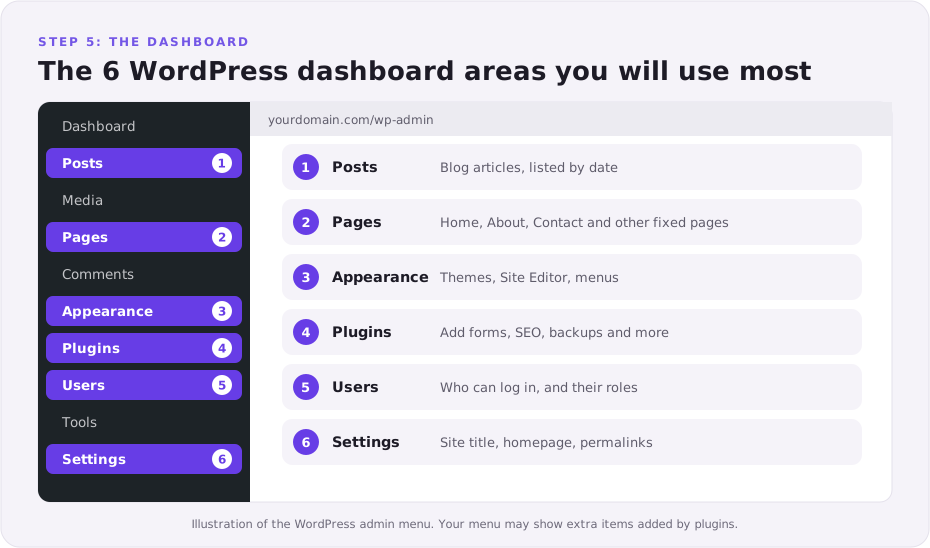
The dashboard is your site’s control room. The left-hand menu holds everything. You only need six areas to start:
| Menu item | What it does |
|---|---|
| Posts | Blog articles, listed by date |
| Pages | Fixed pages such as Home, About and Contact |
| Appearance | Themes, plus the Site Editor or menus and widgets |
| Plugins | Add features such as forms, SEO and backups |
| Users | People who can log in and their roles |
| Settings | Site title, homepage, permalinks and privacy |
Posts vs pages: posts are dated and appear in your blog feed. Pages are timeless, like “About”. Use pages for your main site content.
Step 6: Choose and install a theme
A theme controls how your whole site looks: layout, fonts, colours and header style. You can change your theme later without losing your content.
Go to Appearance → Themes → Add New Theme, search for a theme, then click Install and Activate.
| Theme | Price | Best for | Why beginners like it |
|---|---|---|---|
| Astra | Free (Pro from ~$59/yr) | Business sites, blogs | Hundreds of ready-made starter sites |
| GeneratePress | Free (Premium ~$59/yr) | Blogs, speed-focused sites | Very lightweight and fast |
| Kadence | Free (Pro available) | Small businesses | Easy header and footer builder |
| Twenty Twenty-Five | Free | Simple sites and blogs | Official default theme, full Site Editor support |
Best practices:
- Choose a lightweight, regularly updated theme with good reviews.
- Use a starter template to get a professional design in one click, then swap in your text and photos.
- Check the demo on your phone. Most of your visitors will use mobile.
Common mistake: buying a flashy multipurpose theme loaded with sliders and animations. It slows your site and confuses beginners.
Step 7: Install essential plugins
Plugins add features to WordPress, like apps on a phone. Go to Plugins → Add New Plugin, search, then click Install Now and Activate.
Start with these, and nothing more:
| Job | Free plugin to try | Why you need it |
|---|---|---|
| SEO | Rank Math or Yoast SEO | Titles, meta descriptions, sitemaps |
| Contact form | WPForms Lite or Fluent Forms | Lets visitors reach you |
| Backups | UpdraftPlus | Restores your site if something breaks |
| Speed | LiteSpeed Cache (on LiteSpeed hosts like Hostinger) | Faster loading pages |
| Security | Wordfence | Firewall and login protection |
| Spam | Antispam Bee or Akismet | Blocks comment spam |
| Analytics | Site Kit by Google | Search Console and Analytics in your dashboard |
Pro tip: keep plugins to around 10 to 15 good ones. Every extra plugin is another thing to update.
Common mistake: installing two plugins that do the same job, such as two SEO plugins. They conflict and can duplicate your meta tags.
Step 8: Create your key pages
Go to Pages → Add New Page. WordPress uses the block editor: every paragraph, image or button is a “block” you add with the + button.
Create these five pages first:
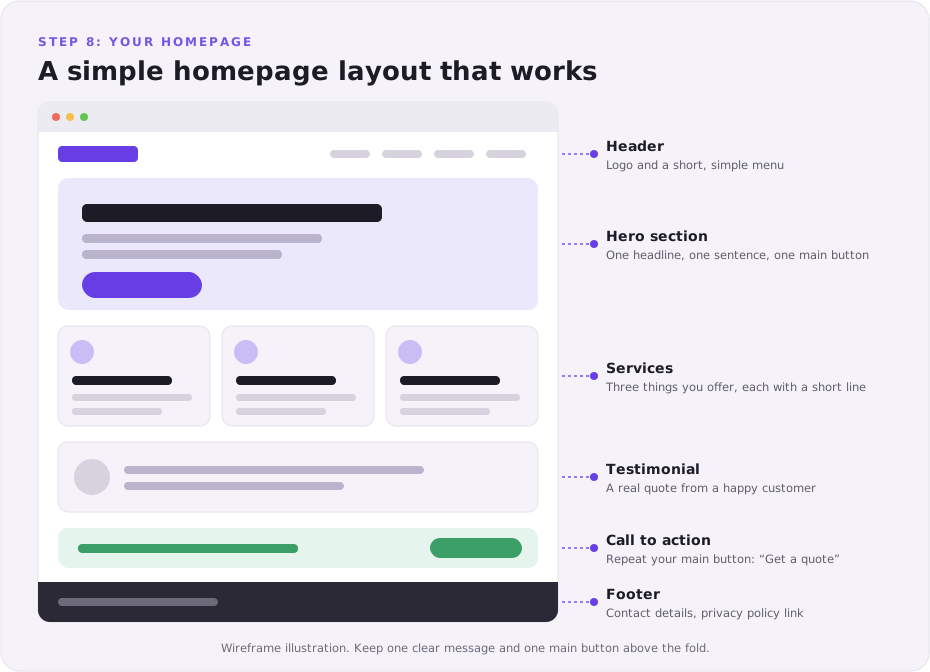
- Home: who you help, what you offer, and one clear call to action.
- About: your story, your photo, and why people should trust you.
- Services (or Shop/Blog): what you sell or write about, with prices if you can.
- Contact: your form, email, phone and, for local businesses, a map.
- Privacy Policy: WordPress creates a draft under Settings → Privacy. Edit and publish it.
Best practices for page content:
- Put your main message in the first screen. Visitors decide in seconds.
- Use short paragraphs and clear headings.
- Add one main button per page, such as “Get a quote”.
- Compress images before uploading (aim for under 150 KB each).
Example: a homepage for a bakery might have a headline (“Custom cakes in Pune, delivered fresh”), three photos, a short menu and an “Order on WhatsApp” button.
Step 9: Set up menus, homepage and settings
A few settings make a big difference. Do these now:
- Settings → General: set your Site Title, Tagline, time zone and language.
- Settings → Reading: set “Your homepage displays” to A static page, choose Home, and choose a Blog page if you have one.
- Settings → Permalinks: choose Post name. This gives clean URLs like yoursite.com/about/.
- Menus: in block themes, go to Appearance → Editor → Navigation. In classic themes, use Appearance → Menus. Add Home, About, Services and Contact.
- Site icon: add a square logo (512 × 512 px) as your browser-tab icon in the Site Editor or Customizer.
Pro tip: set permalinks before you publish many posts. Changing them later can break links unless you add redirects.
Step 10: Make your WordPress website live
Before you tell anyone, run through this launch checklist:
- ✅ Under Settings → Reading, make sure “Discourage search engines from indexing this site” is unticked.
- ✅ Turn off any “coming soon” or maintenance mode your host or theme added.
- ✅ Check that the padlock (SSL) shows and your site loads on https://.
- ✅ Test every page on your phone.
- ✅ Send yourself a test message through the contact form.
- ✅ Click every menu link and button.
- ✅ Run your homepage through PageSpeed Insights.
- ✅ Take your first full backup.
Then add your site to Google Search Console and submit your sitemap (your SEO plugin creates one, usually at /sitemap_index.xml). This helps Google find your pages faster.
Congratulations: your WordPress website is live.
After launch: your first 30 days
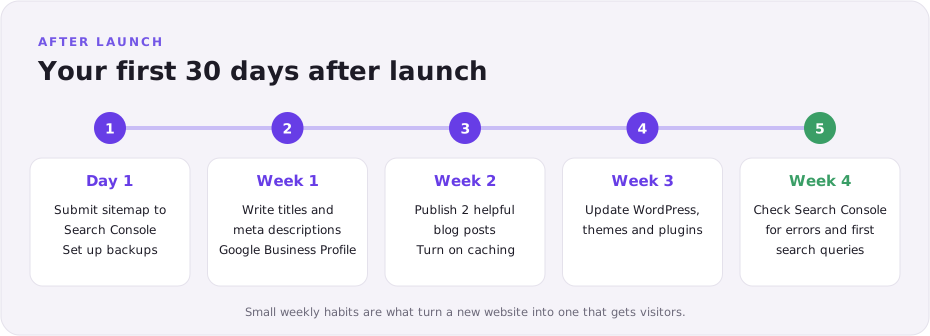
Launching is only the start. These habits decide whether your site gets visitors or sits unseen.
| When | Task | Why it matters |
|---|---|---|
| Day 1 | Submit your sitemap in Search Console | Google finds your pages faster |
| Day 1 | Set up weekly automatic backups (UpdraftPlus or your host) | One click to undo a mistake |
| Week 1 | Write titles and meta descriptions for each page | Better click-through from Google |
| Week 1 | Create a Google Business Profile (local businesses) | Shows you on Google Maps |
| Week 2 | Publish your first 2 helpful blog posts | Gives Google more pages to rank |
| Week 2 | Turn on caching and compress images | Faster pages, better rankings |
| Week 3 | Update WordPress, themes and plugins | Closes security holes |
| Week 4 | Check Search Console for errors and first search queries | Shows what to write next |
SEO basics for a new WordPress website
- One topic per page. Give each page one main keyword and use it in the title and first paragraph.
- Write for people first. Answer the question fully, in plain words.
- Link your own pages together. Internal links help Google and visitors.
- Target low-competition, long-tail keywords. “Eggless birthday cake in Pune” is easier to rank for than “cakes”.
Speed and mobile-friendliness
Most visitors arrive on phones, so a slow or awkward mobile site loses them fast.
- Use a lightweight theme and resize images before upload.
- Prefer WebP images under 150 KB.
- Turn on your caching plugin.
- Test with PageSpeed Insights and fix the top suggestions first.
Security and backups
- Use a strong password and turn on two-factor authentication.
- Update WordPress, themes and plugins regularly.
- Delete themes and plugins you don’t use.
- Keep at least one backup stored off your server, such as in Google Drive.
Example scenario: a bakery website in one weekend
Here is how the steps play out for a typical small business. This is an illustrative example, not a real client.
The situation: Priya runs a home bakery in Pune. Orders come through Instagram DMs, and she loses track of them. She wants a simple site with her menu, prices and an order form.
What she did:
- Saturday morning (1 hour): chose priyasbakes.in, bought Hostinger Premium on a 48-month term with coupon GETTOMARKETING10, and installed WordPress.
- Saturday afternoon (2 hours): installed Astra, imported a bakery starter template, and replaced the text and photos.
- Sunday (2 hours): built an order form with WPForms, added a Contact page with a map, installed Rank Math and UpdraftPlus, and launched.
The result: a mobile-friendly site with a clear menu and order form. Her total first-year spend was under ₹3,000, compared with typical agency quotes several times higher. She now links the site from her Instagram bio and gets orders in one place.
The lesson: a simple, focused site launched this weekend beats a perfect site that never launches.
Common mistakes beginners make
- Choosing WordPress.com when you wanted WordPress.org. Check before you pay.
- Ignoring renewal prices. Budget for what the plan costs after the first term.
- Picking a 1-month plan “to test”. Monthly plans cost far more; use the 30-day money-back guarantee instead.
- Installing too many plugins. More plugins mean slower pages and more updates.
- Uploading huge photos. A 5 MB phone photo can make a page crawl. Resize first.
- Leaving “Discourage search engines” ticked. Google won’t show your site.
- No backups. One bad update can wipe weeks of work.
- Using “admin” and a weak password. It is the first thing bots try.
- Copying text from competitors. Duplicate content hurts rankings and trust.
- Waiting for perfect. Launch, then improve each week.
Can you create a WordPress website for free?
Yes, but with trade-offs. You can use the WordPress.com free plan, or install WordPress on your own computer with a free tool like Local to practise. A free live site, though, comes with limits that hurt a business.
| Free WordPress site | Paid hosting (from ~$3/month) | |
|---|---|---|
| Pros | No cost; good for practice and learning | Your own domain; no forced ads; install any theme or plugin; full control; faster and more secure |
| Cons | Subdomain address; ads on your site; few or no plugins; looks less professional | Small monthly cost; renewal prices rise after the first term |
| Best for | Students, hobby projects, testing ideas | Businesses, bloggers who want to earn, freelancers |
Our advice: practise for free if you want, but put your real site on paid hosting. At around $3 a month, it costs less than a coffee and looks far more professional.
Using AI to build a WordPress website
AI tools can now speed up the slowest parts of building a site.
- AI website builders: many hosts, including Hostinger, offer AI tools that draft a layout and starter text from a short description of your business.
- AI writing help: use AI to draft page copy, then edit it in your own voice and check every fact.
- AI images: create simple illustrations, but use real photos of your products and team where trust matters.
When to use AI: to get past a blank page and save hours on first drafts.
When not to: for facts, prices or claims you haven’t checked. AI text that sounds generic or wrong can hurt trust and rankings.
Frequently asked questions
Is WordPress free to use?
Yes. The WordPress.org software is free for personal and commercial use. You only pay for hosting, a domain and any premium themes or plugins you choose.
How much does a WordPress website cost?
A simple self-built site costs about $40 to $150 in its first year, mostly hosting. Plan for higher renewal prices after the first term.
How long does it take to create a WordPress website?
A basic 5-page site takes most beginners 2 to 4 hours. A larger business site with custom content may take a few days.
Can I create a WordPress website without coding?
Yes. Themes, starter templates and the block editor let you build a full site by clicking and typing. No HTML or CSS is needed.
Should I use WordPress.com or WordPress.org?
Use WordPress.org with your own hosting if you want full control, your own domain and any plugin. Use WordPress.com’s free plan only for hobby or practice sites.
Is WordPress free if I already have a domain?
The software is still free, but you need hosting to run it. You can connect your existing domain to your new host.
Can I create a WordPress website without hosting?
You can practise on your own computer with a free tool like Local, but nobody else can see it. A public site needs hosting or a hosted service like WordPress.com.
Is WordPress free for commercial use?
Yes. WordPress is released under the GPL licence, which allows commercial use, including business sites and online shops.
What is the best hosting for a WordPress beginner?
Choose a host with one-click WordPress install, free SSL, backups and 24/7 support. We recommend Hostinger for beginners; use coupon GETTOMARKETING10 at checkout for an extra discount.
Which theme is best for a new WordPress website?
Lightweight, well-supported free themes like Astra, GeneratePress or Kadence suit most beginners. Pick one with a starter template close to your industry.
How many plugins should a new site have?
Start with 5 to 8 essentials: SEO, contact form, backups, caching, security and anti-spam. Add more only when you need a specific feature.
How do I make my WordPress website go live?
Untick “Discourage search engines” in Settings → Reading, turn off any coming-soon mode, and check that your domain loads over https. Then submit your sitemap to Google Search Console.
How do I make my WordPress website mobile friendly?
Use a responsive theme, compress images, and preview every page in the editor’s mobile view. Test the live site on a real phone too.
Can I make my WordPress website private?
Yes. Set individual pages to Private or Password Protected in the editor, or use a maintenance-mode plugin to hide the whole site while you build.
Can I switch hosts or themes later?
Yes. Your content stays when you change themes. Most hosts, including Hostinger, offer free migration if you move your site to them.
Conclusion
Now you know how to create a WordPress website from start to finish: set a clear goal, pick a domain, buy hosting, install WordPress, choose a theme, add a few plugins, build your key pages and launch.
You don’t need coding skills or a big budget, just an afternoon and the willingness to start. Keep the site simple, launch it, then improve it a little each week using the 30-day plan above.
Ready to start? Get Hostinger with coupon code GETTOMARKETING10 for an extra discount, and follow this guide step by step. See our Hostinger coupon code guide for the latest prices.